PAINT SHOP HOW-TO
How to load a Tesla wrap from a USB drive
Put your PNG in the right folder and load it from the car’s Paint Shop.
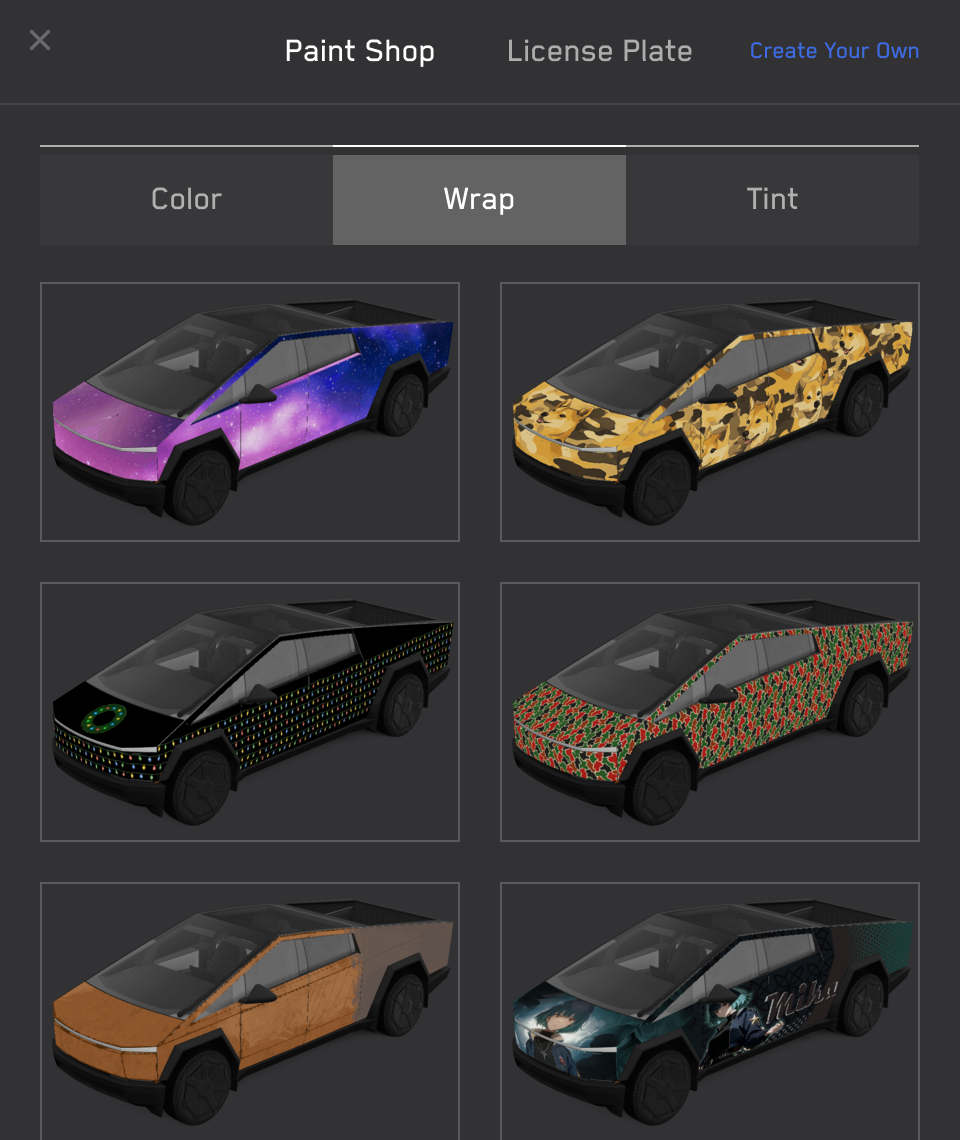
- Check the drive formatTesla supports exFAT, FAT32, MS-DOS FAT, ext3 and ext4; NTFS is unsupported. Check an existing drive first. Back up its contents before any reformatting.
- Create the Wraps folderAt the root of the drive, create a folder named Wraps and put your PNG inside, as shown below. Keep map and firmware update files off this drive.
USB drive/ └── Wraps/ └── my-wrap.png - Select the designConnect the drive to a vehicle USB port that supports data. Open Toybox → Paint Shop → Wraps and select the design. If it is missing, follow the file-check guide.
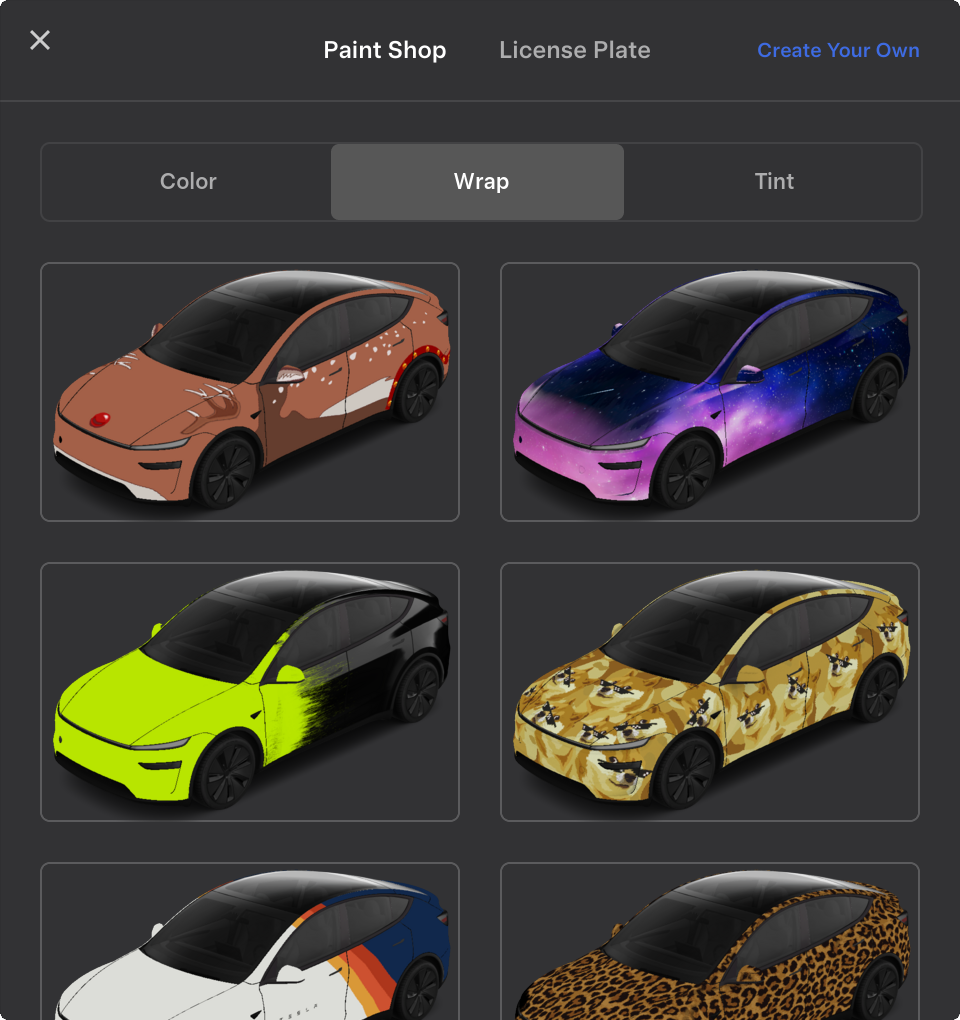
In the car, open Paint Shop and tap the Wrap tab. This is Tesla’s published Model 3 screen; available designs and labels can vary with software. Image source: Tesla ↗
Checked October 3, 2026. Transfer steps and file requirements: Tesla’s official custom-wraps instructions.