PAINT SHOP HOW-TO
How to upload a Tesla wrap from your phone
Download a design, send it through the Tesla app, then select it in Paint Shop.

- Save a design for your exact modelOpen a design from the gallery and download its PNG. Check the vehicle year and trim before saving; keep the model-specific layout intact.
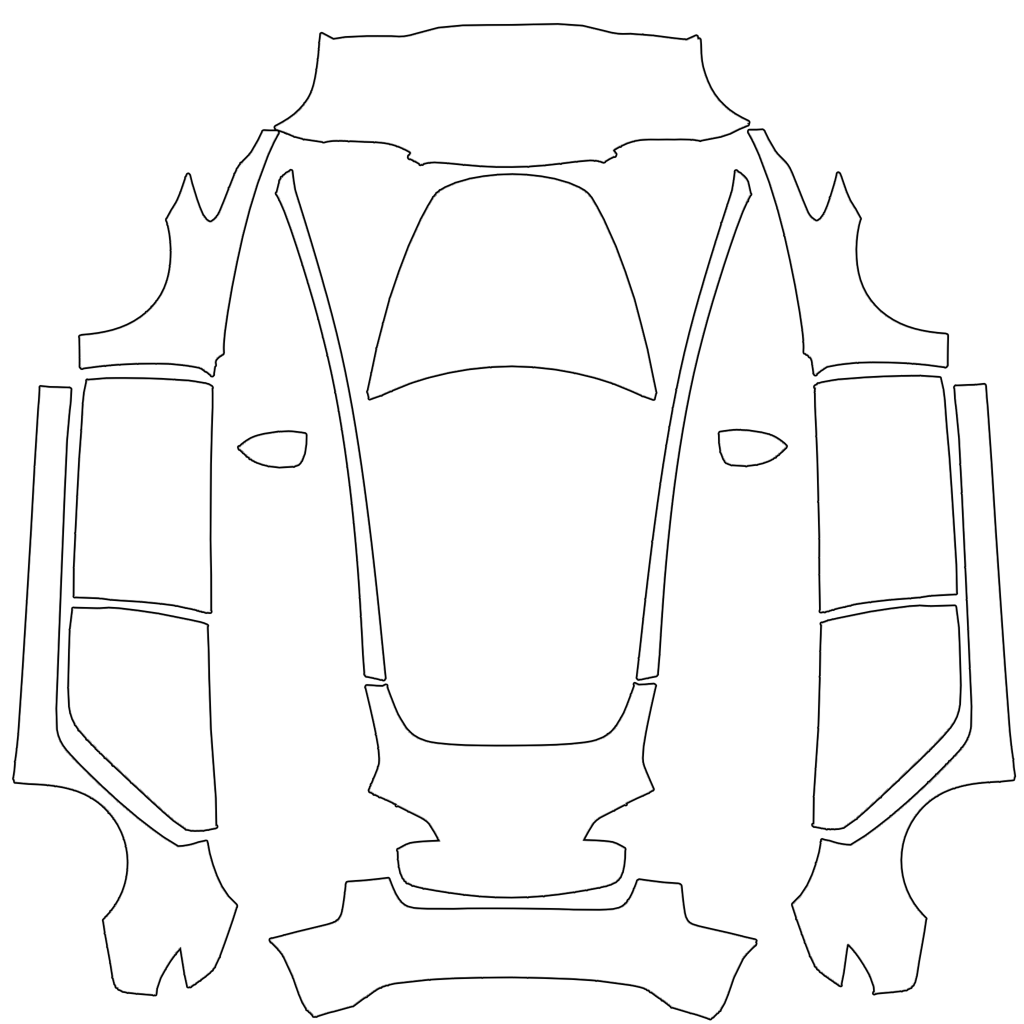
Tesla’s actual Model 3 PNG template, shown here as a file example. The separated panels are expected; choose the template for your own model, year and trim. Image source: Tesla ↗ - Open the Tesla appWith app version 4.59.0 or later, go to Creations → Wrap → Upload and select the saved PNG. If these controls are missing, check your app and vehicle compatibility or use the USB guide.
- Choose your wrap in the carOnce transferred, open Toybox → Paint Shop → Wraps on the touchscreen and choose the design. This customizes the car’s digital 3D model.
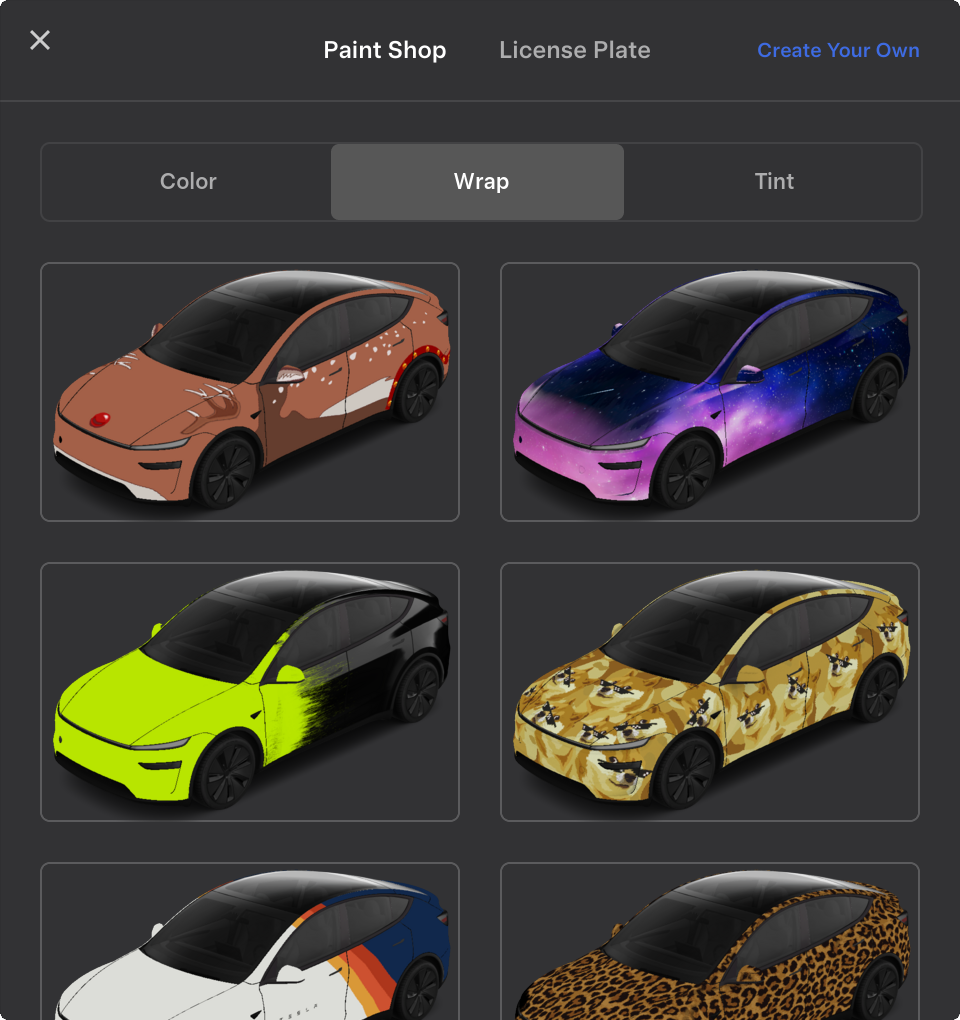
In the car, open Paint Shop and tap the Wrap tab. This is Tesla’s published Model 3 screen; available designs and labels can vary with software. Image source: Tesla ↗
Checked October 3, 2026. Transfer steps and file requirements: Tesla’s official custom-wraps instructions.